Common image formats
Save a JPG, PNG, WebP, or GIF when the public Pin exposes that file.
Paste a link to a public image Pin to view the files Pinviddl can access. Available formats, sizes, and dimensions depend on the source Pin.
Copy the link to a public image Pin, paste it into Pinviddl, and save an available file.
Open the public Pin with the image and copy its share link.
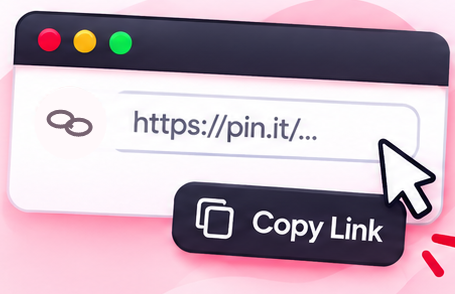
Paste the Pin URL or pin.it link into the box above.
Review available image files, then choose Download.
Save a JPG, PNG, WebP, or GIF when the public Pin exposes that file.
Check image width and height when Pinterest includes them in the Pin data.
Use the downloader in your browser without payment or Pinterest sign-in.
Paste a public Pin link from a phone or computer browser.
Pinviddl saves the available source file without enlarging or re-encoding it.
Choose another tool if your Pin contains a video or animation instead.
Pinviddl reads the public Pin data and lists image files it can access. The source Pin determines the available size, format, and number of images.
When the Pin exposes an original image asset, Pinviddl checks for it before smaller versions. If it is unavailable, the source may provide a smaller image instead. The tool never upscales or sharpens a file.
If a public carousel or multi-page Pin exposes several image assets, Pinviddl lists the files it can access so you can review and save them one at a time.
A public image is not automatically free to repost. Save content you own or have permission to use.
Copy the link from the specific Pinterest Pin, not the board or profile that contains it. A pin.it share link works when it opens one public Pin.
Preview the image before saving. When dimensions are shown, they can help you decide whether a file is large enough for viewing, cropping, or printing. Pinviddl cannot add detail that is missing from the source image.
After you choose Download, look in your browser’s Downloads list. On a phone, the file may appear in the browser’s download menu or the Files app; the exact location depends on your device settings.
Public access does not automatically grant permission to republish an image. Save your own work or material you are authorized to use. See Pinterest’s copyright guidance.
Answers about image formats, quality, multi-image Pins, and downloads.
Copy the link to one public image Pin, paste it into Pinviddl, and choose Download. Preview the available image and select a file to save it in your browser.
Pinviddl can save JPG/JPEG, PNG, WebP, or GIF files when they are exposed by a public Pin. The source determines the available format.
Pinviddl checks for an original image asset when the public Pin exposes one. The source determines image quality, and Pinviddl does not upscale or sharpen images.
Pinviddl may list separate image files when a public carousel or multi-page Pin exposes them in its data. What is available depends on the Pin.
Check that your link opens one public Pin. The Pin may be private, deleted, or restricted, or it may not expose an image file Pinviddl can access.
Yes. Paste a pin.it link if it opens one public Pinterest Pin. Links to boards, profiles, and search results are not supported.
No. Pinviddl works with one public Pin at a time; board links are not supported.
Your browser usually lists the download in its Downloads section. On a phone, check the browser’s download list or the device’s Files app; the exact location depends on your settings.
Yes. Pinviddl is free to use, and you do not need a Pinterest sign-in or Pinviddl account. The tool can only check Pins that are publicly accessible.
A public Pin is not automatically free to repost or reuse. Download images you own or have permission to use, and check with the copyright holder when needed. See Pinterest’s copyright guidance.